How to use ECG on Apple Watch: record a clean reading
Your Apple Watch records a single-lead ECG in 30 seconds, using the electrical sensors in the Digital Crown and the back crystal. A calm, steady half-minute is all it takes: there's no rush and nothing to get wrong, and you can record as many times as you like. Here's how to start a recording, what to do if the ECG app is missing, and how to get the cleanest reading possible.
Starting an ECG takes two steps
Open the ECG app on your watch, the red heartbeat with a waveform running through it:
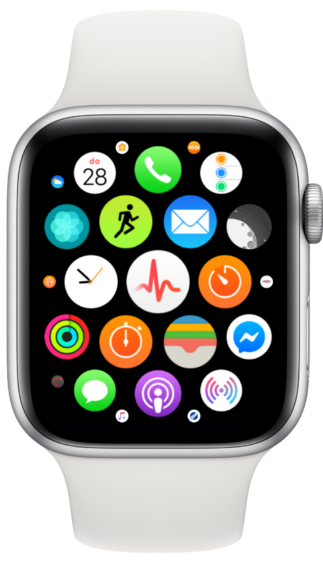
The ECG app on the watch home screen: the red heartbeat with a waveform.
Then rest a finger from your opposite hand lightly on the Digital Crown: no need to press. The 30-second recording starts as soon as contact is made:
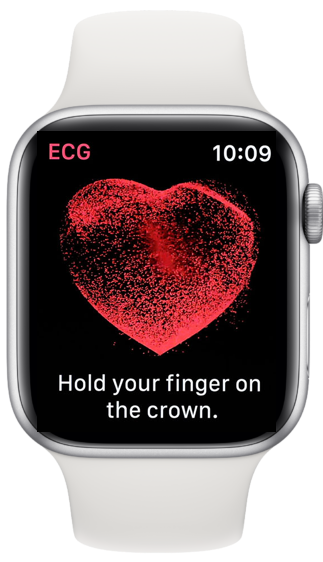
The ECG app prompts you to hold your finger on the crown, touch lightly, and the countdown begins.
That's the whole idea. The rest of this guide is about getting the cleanest possible reading, and what to do if a recording comes back noisy.
Can't find the ECG app?
The ECG app needs a one-time setup, and it only works on Apple Watch Series 4 or later (or any Ultra), in a supported region, for ages 22 and over. The Apple Watch SE has no ECG sensor, so no software update can add it. If the app is missing or won't open, our step-by-step guide covers enabling it and fixing a missing app: How to set up the ECG app on Apple Watch.
Clean recording, step by step
- Sit down and rest your arms on a table or your lap.
- Dry your wrist and the watch. This matters most of all, moisture weakens the electrical signal.
- Check the fit: snug on your wrist, not squeezed tight.
- Take a few slow, deep breaths. Feeling a little anxious is completely normal, especially if you're recording because you felt something. The breaths settle you, your arms and the recording.
- Open the ECG app: the red heartbeat with a waveform.
- Rest a finger lightly on the Digital Crown. No need to press; the countdown starts on contact.
- Stay still for 30 seconds, breathing slowly, without talking or moving.
- Save the result, adding any symptoms you felt, palpitations, a skipped beat, dizziness. The recording syncs to the Health app on your iPhone automatically, where ECG+ can analyze it in detail.
Tips for the cleanest recording
Dry skin contact comes first. A damp wrist, from washing your hands, sweat, or lotion, is the single most common cause of a poor recording. A few seconds with a towel before you start makes more difference than anything else.
Hold the watch with two fingers. Even tiny finger movements or pressure changes on the crown disturb the signal. Index finger on the crown, thumb on the corner of the watch body, both the finger and the pressure stay steady:
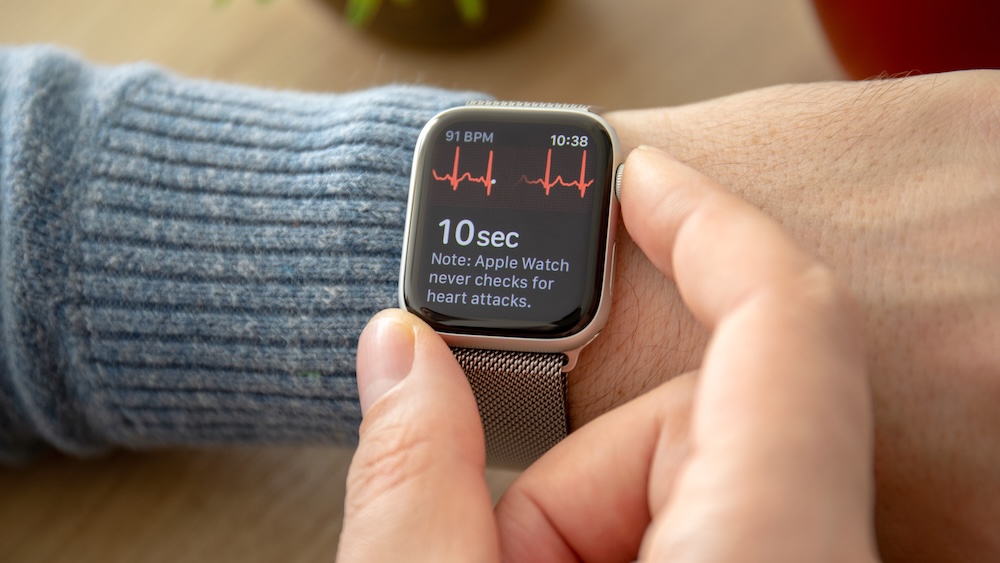
The two-finger hold: index finger on the crown, thumb on the corner, steady contact, steady pressure.
Rest both arms on a table. Arms supported and relaxed, not held in the air, keep the natural shakiness of the muscles out of the waveform.
Get the fit just right. A loose watch loses skin contact; an overtight band can distort the signal too. Snug and comfortable is the goal.
If it says "Poor Recording" or "Inconclusive"
Don't be alarmed, this says nothing about your heart. It means the watch couldn't read a clean enough signal: a damp wrist, a small movement, a loose band. Dry your wrist, take a few slow breaths, and record again, most people get a clear reading on the next try. If it keeps happening, see our guides to fixing a "poor recording" and what "inconclusive" means.
If the recording won't start, or keeps restarting
Sometimes the app opens but the 30-second countdown never begins, or it starts and then jumps back to 30 over and over. Almost always this is about contact, not your heart.
The countdown won't start at all. The timer only begins once the watch detects a complete circuit: the back of the watch on your wrist and a fingertip resting on the Digital Crown. If nothing happens when you touch the crown:
- Rest a finger on the Digital Crown with the opposite hand and keep it there, you don't need to press, just steady contact.
- Dry your wrist and fingertip, and make sure the back of the watch sits flat against your skin.
- Tighten a loose band a notch so the sensor keeps contact.
- Check your wrist and crown orientation in the iPhone Watch app (My Watch → General → Watch Orientation), a mismatch can stop a recording from ever starting.
If the ECG app is missing or won't open in the first place, that's a setup issue rather than a recording one, our guide to setting up the ECG app covers enabling it and getting it to appear.
The countdown keeps restarting. When the timer resets to 30 again and again, the watch is losing the clean signal it needs, usually a finger lifting off the crown, a small movement or talking, a loose band, or a damp wrist. Settle both arms on a table, hold steady, and stay quiet for the full 30 seconds. Our full guide walks through every cause and fix: why your Apple Watch ECG keeps restarting the countdown.
Still won't work? Contact Apple. If you've dried your wrist, checked the fit and orientation, and the recording still won't start or keeps restarting after several careful tries, it's worth ruling out a hardware fault, the electrical sensor or Digital Crown can occasionally fail. Apple Support can test your watch and arrange a repair if it's faulty.
When should you record?
The moment you feel something. A skipped beat, a flutter, a racing heart, symptoms rarely wait for a doctor's appointment, and a recording taken during the symptom is the most valuable one you can capture. Since the watch is already on your wrist, a 30-second recording right then can hold the answer.
Recording when you feel perfectly fine is useful too: it gives you a healthy baseline for comparison, and regular readings build up your HRV and heart-rate trends over time.
Getting more from every recording
The built-in app classifies your rhythm, sinus rhythm, AFib, or inconclusive, and stops there. ECG+ reads the same recording for the detail the watch leaves out: every heartbeat annotated with its timing, possible premature beats (PACs and PVCs) marked where they happen, rhythm patterns, QT/QTc and HRV, all in a report you can share with your doctor.
Note: the Apple Watch ECG and ECG+ are informational tools, not a diagnosis or a substitute for medical care. If you have chest pain, severe shortness of breath, or think you may be having a heart attack, call emergency services, the watch does not check for heart attacks. See the disclaimer and talk to your doctor about any health concerns.